
Generation with artificial intelligence
Set up the API key
Generating MIDI parts with artificial intelligence uses the Google Gemini service. It needs a Google API key, free of charge, which you create on Google's website.
Open Settings › Artificial intelligence. Paste your key into the "Google API key" field. It is saved on every keystroke, and the application checks it: a green tick means a valid key, a red cross a rejected key.
- The "Link to create a Google API key" link opens the key creation page in your browser.
- There is no quality setting any more: the application always uses the most capable model available and automatically moves on to the next one when a model has used up its daily quota. A Models used section lists the models used today, with their request count and, when known, their approximate free daily limit.
Edit a block with AI
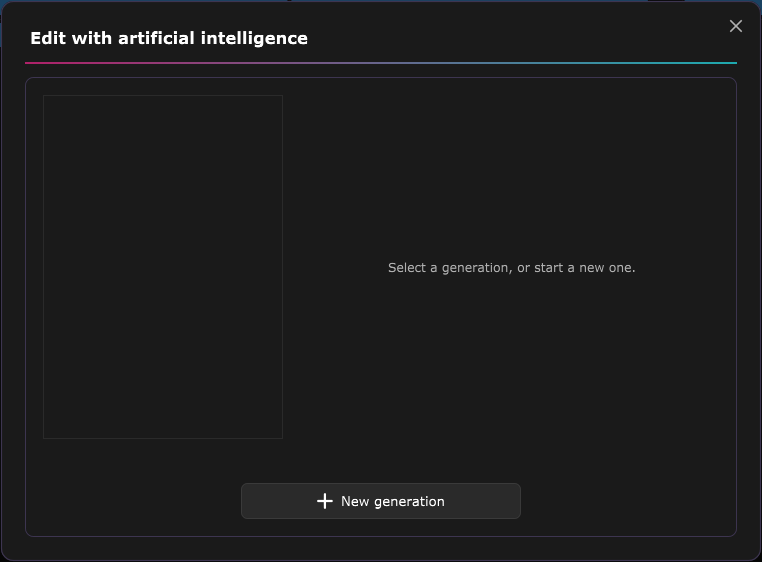
Open a MIDI block (drums or synthesiser) in the editor, then click the "Edit with artificial intelligence" button. A window opens with the history of every generation launched for this block, the most recent first, and on the right the details of the one you select.
To start a new one, click New generation at the bottom of the window:
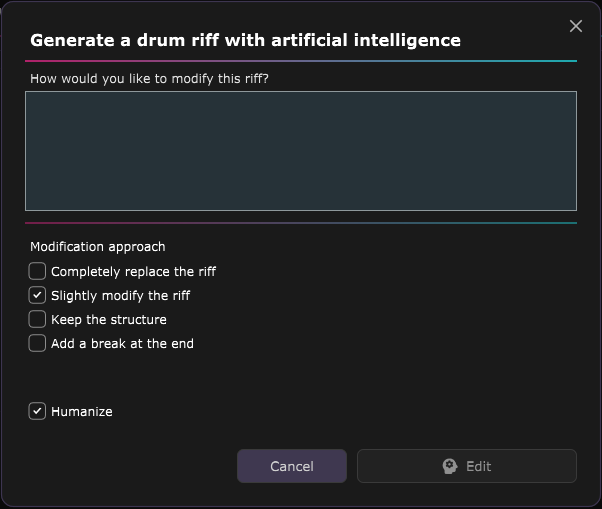
- Describe what you want in the text field, in French or in English.
- Leave "Humanize" ticked for a less mechanical feel.
- If the block already contains notes, choose a modification approach: completely replace, slightly modify, keep the structure or add a break at the end.
- Click Generate (the button is labelled Edit when the block already contains notes).
The generation runs in the background: the window goes back to the history, where the row appears with its state (waiting, in progress, succeeded or failed), and you can keep working, or start others. Only one request is sent at a time, the most recent first.
- A succeeded generation shows how long it took and a preview of the result. Listen plays it, Apply puts it into the block (the action can be undone), and Edit reopens the form pre-filled so you can start a new variant, without touching this one.
- A waiting, running or failed generation shows your request. Retry moves it back to the top of the stack, and Edit lets you correct the request before relaunching it. On a failure, the error message is shown.
Generations are kept with the session: you find the block's history again when you reopen it.
Preview the prompt
In a block's history, select a generation and click View the full prompt: you see the exact text handed to the service, with a button to copy it to the clipboard. It combines your description and the content of the block at the time of the request. This helps you understand why a result is off and how to rephrase.
The prompt also states the session tempo, time signature and number of measures, along with the matching tick grid, so the generated part lands in time. For a compound signature (6/8, 9/8, 12/8) it additionally spells out the dotted-note pulses to phrase on.
Follow generations and quotas
From the first generation of the session, an AI chip appears in the menu bar, to the left of your username. It shows the progress of the current batch (for example 1/3) and a small wheel spins while a request is in flight. The icon turns green when everything has finished and you haven't looked at the result yet, and red when the queue has stopped.
Clicking the chip opens Recent AI generations: every generation of the session, all blocks together, with the block name, its type, an excerpt of the request, its age and its state. At the top, a summary gives the number of successes and failures, the average delay and the share of results that were applied. Clicking a row opens the editor of that block, on that generation.
Google's services impose limits. The application handles them on its own:
- If the service is momentarily overloaded, the request is retried automatically, with a longer and longer wait; a "Retrying automatically" message says so, and the application switches to another model if this one stays unavailable.
- If a model has used up its daily quota, it moves straight on to the next one, without asking you anything.
- If every model has used up its quota, or if your key is blocked, the queue stops, the chip turns red and the window opens with the explanation. The free quota resets every day; you can also click Resume generations, or enter a new valid key in Settings › Artificial intelligence, which restarts the queue automatically.
- An unusable answer (invalid format, answer blocked by the safety filter) marks the generation as failed, with no new attempt. You can retry it by hand.
ASIO is a trademark of Steinberg Media Technologies GmbH, registered in Europe and other countries.