
Playback and mixing
The transport buttons
The transport bar, at the bottom of the window, is arranged from left to right in five sections.
- Timer: the time elapsed since the start.
- Volume: an "Effects" button for the session effects, the controls for the effects you have added, the overall mix volume knob (right-click → "Configure volume"), and a level meter.
- Transport: in the centre, a return to start button (a "skip to start" icon), then the record, play/stop and pause buttons. The "return to start" button brings the time bar back to bar 1; if pressed during playback, playback restarts from bar 1. It has no effect while recording.
- Equaliser: the spectrum display and a three-band equaliser applied to the whole mix.
- Time signature and metronome: on the right, the metronome button and a reminder of the tempo and time signature at the time bar's position: the value follows the playhead, so it counts up or down through an accelerando or a ritardando (see "Time signature and tempo" in the Sessions chapter).
Outside recording mode, "play" plays every track and stops at the end of the longest one. "pause" suspends playback without returning to the start.
The space bar drives the play button of the frontmost window: the multitrack when it is showing, the block preview when a block editor is open (including a detached editor window). It does nothing while you are typing in a text field.
Volume and effects per track
A track's volume and effects are each set in their own spot in the track panel.
- Volume: the volume knob at the bottom of the panel is turned directly. A right-click on it opens "Configure volume" ("Track volume configuration" window): the knob stays centred on 0 dB (the original volume), and the only setting is the ± dB amplitude, how far the knob can cut or boost. Same idea for the session volume (transport-bar knob) and a block's volume (block transport-bar knob).
- Effects: the track's effects button opens the effect list. It turns blue as soon as at least one effect is applied. The "Add an effect" button offers a wide palette (reverb, compression, overdrive, modulation effects, delay, echo, fades…). Each added effect appears with its own controls.
The octaver transposes the sound by whole octaves. Its configuration has no knob: an Octaves field with − / + buttons (a whole number from −3 to +3, 0 = no effect) and a Mix percentage field (the balance between the original and the transposed sound). It is edited only from this window: there is no mirrored control on the track or in the transport bar.
The same effects exist at the level of the whole session, through the "Effects" button in the transport bar.
Effect order
At the bottom of the effect list, the Effect order menu decides the order in which the effects are applied. It is identical for a track's effects, a block's effects and the whole session's effects.
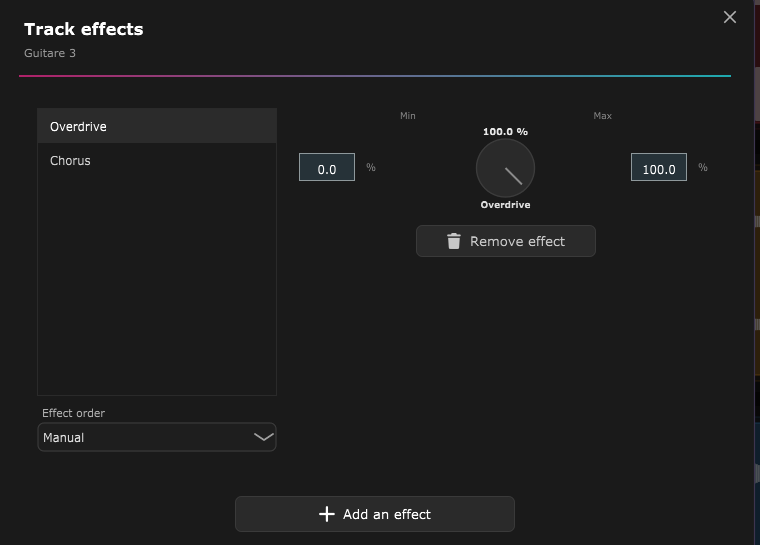
- Automatic (default): the effects are placed in a recommended processing order, whatever order you added them in.
- Manual: you set the order yourself. Drag an effect up or down in the list; it is applied top to bottom, in that order.
The effect knobs, in the track's, block's or session's transport bar, reorder themselves left to right to follow the list order. The fade in and fade out always stay at the end of the chain and do not move.
The chosen mode and order are saved with the session.
Mute a track
Each track's mute button leaves it out of the mix. A muted track is heard neither on playback nor on export, but it stays in the session and its recordings are kept. The mute state is saved with the session.
It is the simple way to compare two takes, or to set a track aside without deleting it.
ASIO is a trademark of Steinberg Media Technologies GmbH, registered in Europe and other countries.