
Getting started
Overview
EasyRecord Studio is a multitrack studio application designed to stay simple. You create tracks, you record a microphone or an instrument, you add MIDI parts if you need them (drums, piano, synthesiser), then you export the result as a single audio file.
Recording and playback are real audio engines. What you hear during playback is the actual mix of your tracks, and the export produces exactly that mix.
The application is built around one main window, the multitrack view, and a menu bar at the top of the window: File, Export, History, Midi, Settings, My account, Documentation and Contact. The Export and History menus only appear once a session is open.
On the right of this bar, chips show the state of the application: the AI chip (see the Generation with artificial intelligence chapter), then the processor, memory and storage usage (see the Disk space chapter), and finally your username and the version.

From idea to exported song
Here is the full path to produce a song. Each step has its own chapter in this documentation.
- Create an account and sign in (once).
- Create a new session, or reopen an existing one.
- Add one or more tracks with the "Add a track" button.
- To record, choose the track's input device (your microphone or your interface) and, if needed, set the file format in Settings > File format.
- Arm the "record" button on every track you want to record, then click the "record" button in the transport bar: recording starts (if you turned off "Recording starts playback", press "play" afterwards).
- Play your part, then press "stop".
- Repeat for the other tracks. Add MIDI blocks and sounds from the online library where needed, or parts generated by artificial intelligence.
- Listen to the mix, set each track's volume, mute the tracks you do not want to keep.
- Export to WAV or MP3 from the Export menu.
Create an account and sign in
On first launch, the application shows a sign-in screen. Click "Sign in": your browser opens the EasyRecord Studio website, where you create your account or identify yourself.
Once you are signed in in the browser, go back to the application: it unlocks automatically. The sign-in is remembered on this computer, so you will not have to do it again on every start.
You can sign out at any time from the "My account" menu, "Sign out" option.
The home screen
As long as no session is open, the application shows the home screen. It lists all your sessions, the most recently changed one first.
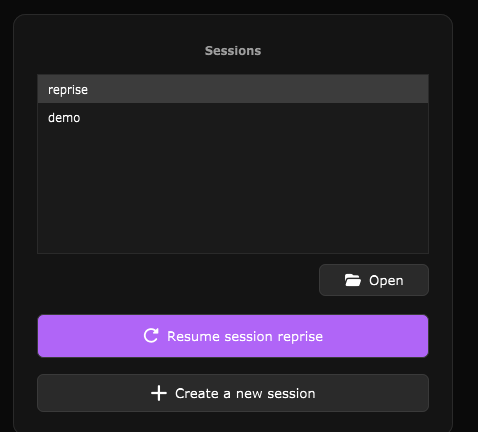
- Open: opens the session selected in the list (a double click on a row does the same).
- Resume session: reopens the most recently changed session directly.
- Create a new session: opens the window for creating a blank session.
- Discover the app: starts the built-in tutorial (see below).
The multitrack view only appears once a session has been created, loaded or resumed.
The built-in tutorial
EasyRecord Studio ships with a guided tour of all of its features. You start it from the "Discover the app" button on the home screen, or from the Documentation > Tutorial menu at any time.
The tutorial opens a demo session that is never saved among your sessions. For its whole duration the application is read-only: the tutorial performs the actions (creating a track, adding a block, opening an editor…) while an explanatory panel highlights the element concerned.
You move forward with "Next" or the right arrow key, back with "Previous" or the left arrow key, and the Esc key quits at any time. On exit you return to the home screen, or to the session that was open when you started the tutorial.
Help and contact
The Contact menu opens the EasyRecord Studio website's support form in your browser, with four entries depending on your request: Ask for help, Report a bug, Suggest an idea and Write feedback. The matching category is already selected in the form.
The Documentation menu opens this online documentation, or the built-in tutorial.
ASIO is a trademark of Steinberg Media Technologies GmbH, registered in Europe and other countries.