
Create and manage a session
Create a session
A session is a project: it holds your tracks, your recordings, your MIDI blocks and your settings. Each session lives in its own folder on disk.
To create a session, use "Create a new session" on the home screen, or the File › New session menu.
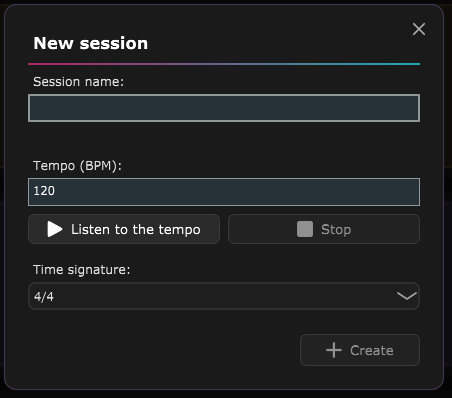
Give the session a name, then confirm. A new session starts with an empty track list.
You also choose the tempo in BPM and the time signature. The "Listen to the tempo" button plays the metronome before the session even exists. The time signatures are listed by how common they are: 4/4, 3/4, 6/8, 2/4, 2/2, 12/8, 9/8, 3/8, 6/4, 5/4, 7/8. Compound signatures (6/8, 9/8, 12/8) are counted in dotted-note pulses of three eighth notes: the metronome then accents each dotted beat, and the timeline marks those pulses with a stronger tick.
The tempo and time signature chosen here are only the song's starting point: they can then vary over the course of the session (a time signature change, a tempo change, a speed-up, a slow-down), straight from the timeline - see "Time signature and tempo over the course of the song" below.
Load or resume a session
From the home screen, select a session and click Open, or double click its row. The Resume session button reopens the most recently changed session directly.
When a session is already open, the File › Load session menu shows the same list in a window, so you can switch between sessions without closing the application.
Tracks, along with their name, colour, type, instrument and mute state, are saved in the session and restored when it opens.
Delete a session
Select a session in the list, on the home screen or in the File › Load session window, then click the Delete button, to the left of "Open".
A confirmation window opens. Deletion is permanent and cannot be undone: the whole session folder is erased from the working folder, including the recorded audio files and the exports. The Cancel button is deliberately given prominence there; only confirm if you are sure.
The session currently open in the multitrack cannot be deleted: in the "Load session" window, its "Delete" button stays disabled.

The sessions folder
All sessions are grouped in the sessions folder, a sessions
subfolder of the working folder - which also holds the working
copies of audio files opened or imported into the application (see the Editing the
waveform chapter, "Open an audio file" section). By default this working folder is
EasyRecordStudio inside your user folder.
You can change this folder in Settings › Working folder, with the "Browse" button. The change is not applied straight away: a confirmation window offers two independent checkboxes.
- Copy existing sessions to the new folder (ticked by default): copies your current sessions into the new folder. It is a copy, the old folder is not emptied.
- Delete the old folder (unticked by default): only has an effect if the old folder is actually empty at confirmation time.
The File › Open the session folder and Open the sessions folder menus open these folders in the file explorer.
Change the session name
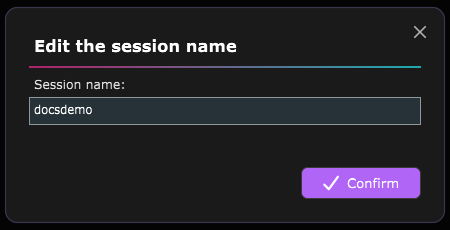
In the multitrack, the session name is shown under the EasyRecord Studio logo, top left. The small pencil button next to it opens a window with a name field, pre-filled with the current name. Confirming renames the session and renames its folder on disk to match - if a folder with the same name already exists at the same location, a red message appears under the field and the rename is refused.
Time signature and tempo over the course of the song
Tempo and time signature are no longer fixed for the whole session (see "Create a session" above): they can change at any point in the song - a time signature change, a one-off tempo change, or a gradual speed-up/slow-down over several measures. Everything is driven by right-clicking directly in the multitrack's own timeline, just above the tracks.
Below the bar/beat ruler, two thin rows show the changes already placed as small blocks: the top one for time signature changes ("4/4", "3/4"...), the bottom one for tempo changes and speed-ups/slow-downs (a single BPM value for a one-off change, "80 -> 120" for a speed-up/slow-down).

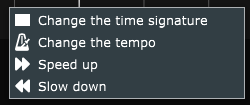
Right-clicking a beat that is still free opens a four-item menu:
- Change the time signature - the same time signature selector as when the session was created.
- Change the tempo - the same tempo (BPM) field and the same preview button as at creation.
- Speed up / Slow down - a window with the original tempo (previewable, not editable), the target tempo (also previewable), a duration expressed in measures or beats (each automatically recalculates the other), and a transition curve - the same as for a fade in/out: drag the handle to make the speed-up/slow-down gradual or, on the contrary, abrupt.
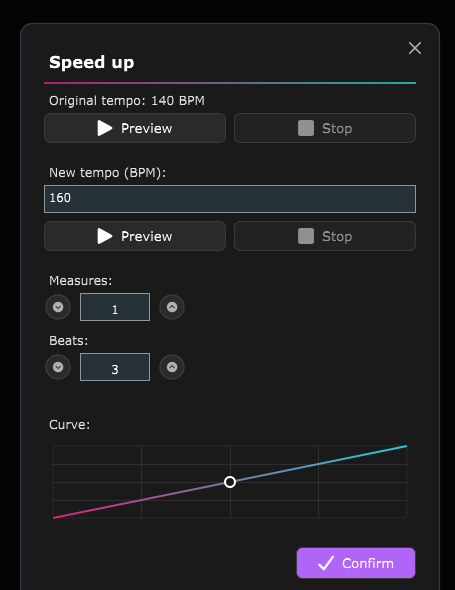
The new change applies from the exact beat the right-click landed on. Two changes can never overlap on the same beat; if the duration chosen for a speed-up/slow-down would reach into a change already present further along the song, a warning message appears in the window and the "Confirm" button stays disabled until the duration is shortened.
An existing mini-block behaves like an audio block: a left-click selects it and draws a white outline around it (only one highlighted block at a time across the whole multitrack, mini-blocks and audio/MIDI blocks alike - selecting one clears the other), a click-drag moves it from one beat to another, a double-click or right-click › Edit reopens its pre-filled window, and the right-click menu also offers Delete. Once a mini-block is selected, the Delete key removes it too. The time signature change and the tempo change placed at the very start of the song (beat zero, the ones chosen when the session was created) can be selected and edited but never deleted - there must always be a starting time signature and tempo.
These changes apply to the whole session: the timeline, the metronome, the count-in, editing audio and MIDI blocks, mixing and export. The bar ruler and the overview bar above the tracks space their bars by real duration: where the tempo is fast (or after a change to a shorter time signature) the bars tighten, and the two bars stay aligned with each other. The tempo and time-signature readout in the transport bar follows the playhead (it scrolls through an accelerando, rounded to a whole number).
ASIO is a trademark of Steinberg Media Technologies GmbH, registered in Europe and other countries.